
Spare parts and stock at a glance.
Stock management in Klar-ID: items with item number, brand and category, on-hand, reserved and available quantity, prices, import from CSV or XLSX with a preview, CSV export and goods inward.
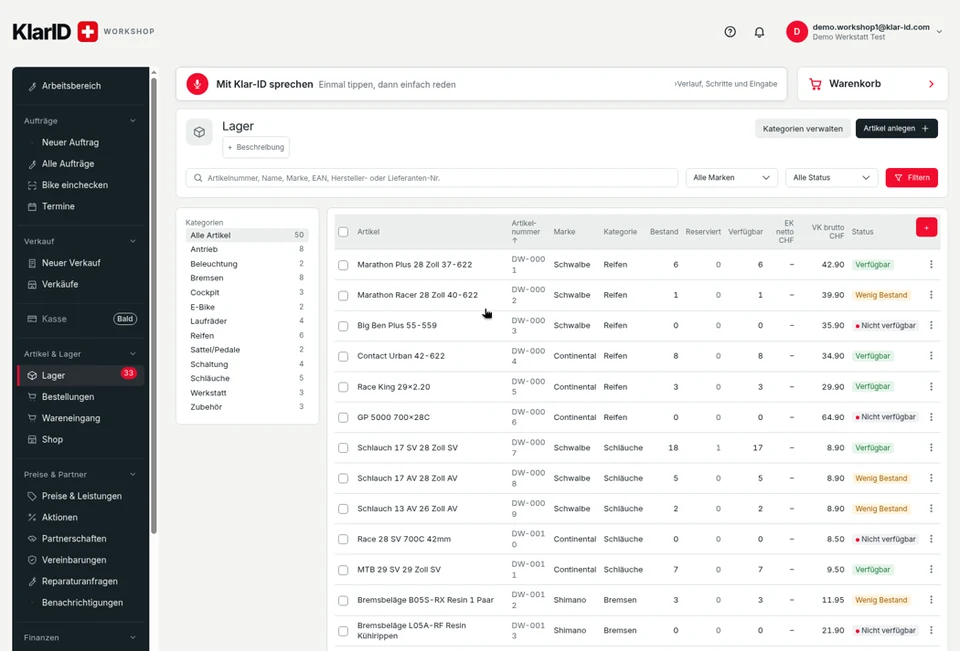
Inventory and stock management for bike shops: tyres, tubes, brake pads, chains, batteries and many other items have to be managed day to day. For bikeshops with their own spare-parts stock: in Klar-ID stock you see every item with the on-hand, reserved and available quantity as well as purchase and sales prices.
At a glance
Stock at a glance
On hand, reserved and available per item.
Organised by category
From drivetrain to accessories, with the number of items per category.
Prices in stock
Net purchase price in CHF and gross sales price in CHF directly in the list.
Import and export
Import from CSV or XLSX, export as CSV.
How it works
- Record items: Create items one by one or import them from a CSV file.
- Check the import: The preview shows, before you confirm, what will be created and what will be updated.
- Use stock: Filter items by category, brand or status and check the available quantity.
- Goods inward: Open deliveries from goods inward.
Features in detail
- Item list: Item, item number, brand, category, on hand, reserved, available, net purchase price in CHF, gross sales price in CHF, status and actions.
- Categories: Drivetrain, lighting, brakes, cockpit, e-bike, wheels, tyres, saddle/pedals, gears, tubes, workshop and accessories.
- Search and filters: Search by item number, name, brand, EAN, manufacturer or supplier number, and filter by brand and status.
- Status: “Available”, “Low stock” or “Unavailable” per item.
- Import with preview (CSV or XLSX): Existing items are updated by item number; the on-hand, reserved and sales price of existing items are not overwritten.
- Export: Download stock as a CSV file.
- Goods inward: Reached directly from the Items & stock area.
Frequently asked questions
Does a CSV import overwrite my stock?
No. An import from CSV or XLSX updates existing items by item number, but leaves on-hand, reserved and sales price unchanged. Before you confirm, a preview shows which items will be created and which will be updated. Only then do you take the data over. So you can add to item lists without losing your counted stock. More on the Stock management page.
What does Reserved mean?
Reserved is the quantity of an item that is already earmarked and should therefore no longer be sold or fitted freely. Klar-ID shows three figures side by side for every item: on hand, reserved and available. Available is what remains free of the on-hand quantity. On top of that there is a status per item: “Available”, “Low stock” or “Unavailable”. So you can see, before you promise a customer, whether a part is really there.
Can I export my stock?
Yes. Stock can be downloaded as a CSV file at any time, for example for analysis in a spreadsheet. The other way around you import items from CSV or XLSX; a preview first shows what will be created and what will be updated. Existing items are updated by item number, without overwriting on-hand, reserved and sales price.
How do I create articles?
You can create articles one by one or import them from a CSV or XLSX file. A preview shows before you apply the import what will be created and what will be updated.
What quantities do I see for each article?
In the warehouse you see every article with stock, reserved and available quantity, as well as the purchase and sales price (net cost and gross selling price).
Can I filter the warehouse?
Yes. You can filter articles by category, brand or status and check the available stock. You open deliveries via goods receipt.
Related features
Get started with Klar-ID
You register yourself in the Klar-ID app. Get started, view packages and prices or get in touch for a demo.
Want to find out more or talk to us?
Drop us a line.